Using the Time Machine
- Disaster Science
- Bushfire.io
- October 10, 2025
Table of Contents
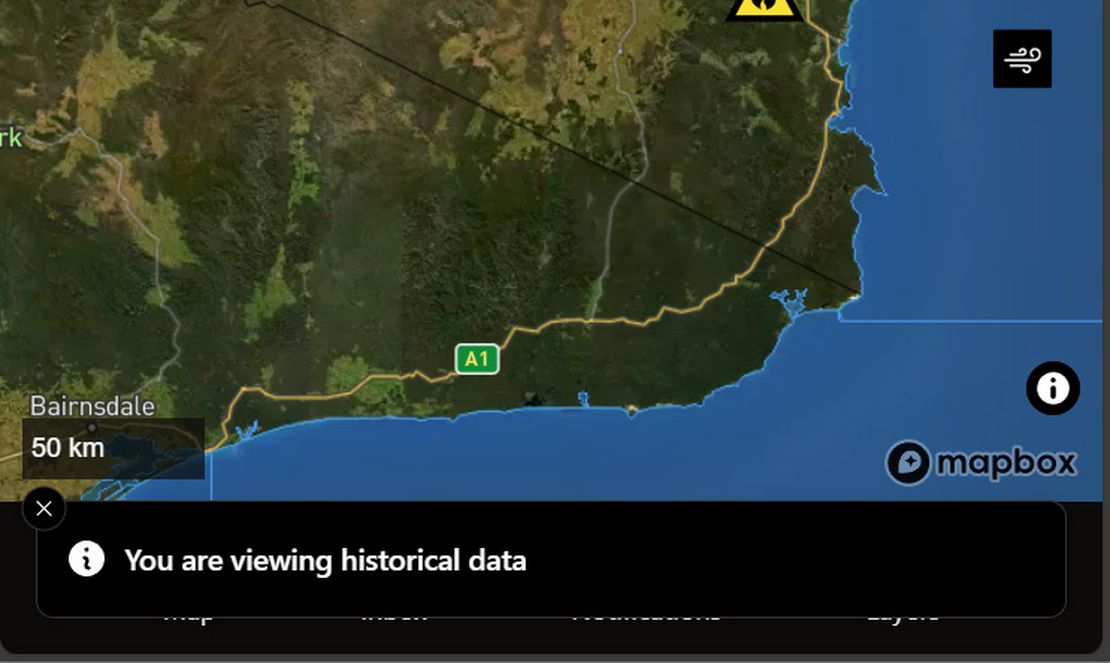
Bushfire.io’s Time Machine lets you explore the map as it looked in the past or jump forward to view predicted wind conditions. Whether you’re reviewing how an incident unfolded or planning ahead, Time Machine provides an interactive way to see disaster data through time.
Info
Requires a subscription to Bushfire.io Pro, Business or Enterprise.
Overview
With the Time Machine, you can:
- View past incidents, warnings, road closures, and public messaging, like a snapshot in time.
- Step forward into forecast mode to visualise predicted wind and fire behaviour.
- Compare different dates to understand how events evolved.
How to Use Time Machine
Open the Layer Control Tap or click the Layer Control button on the map toolbar.
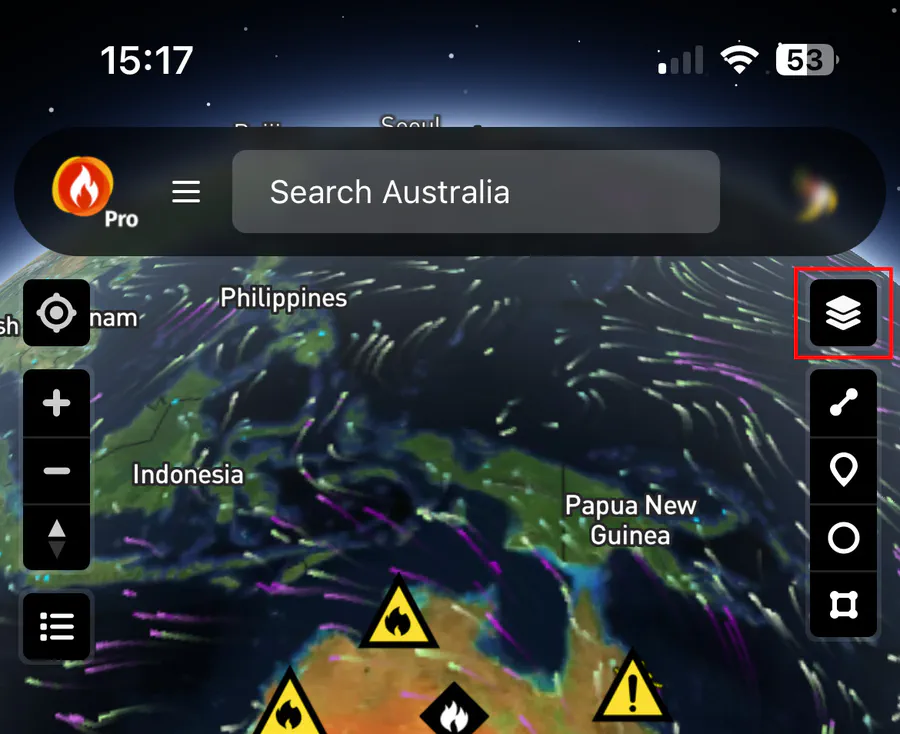
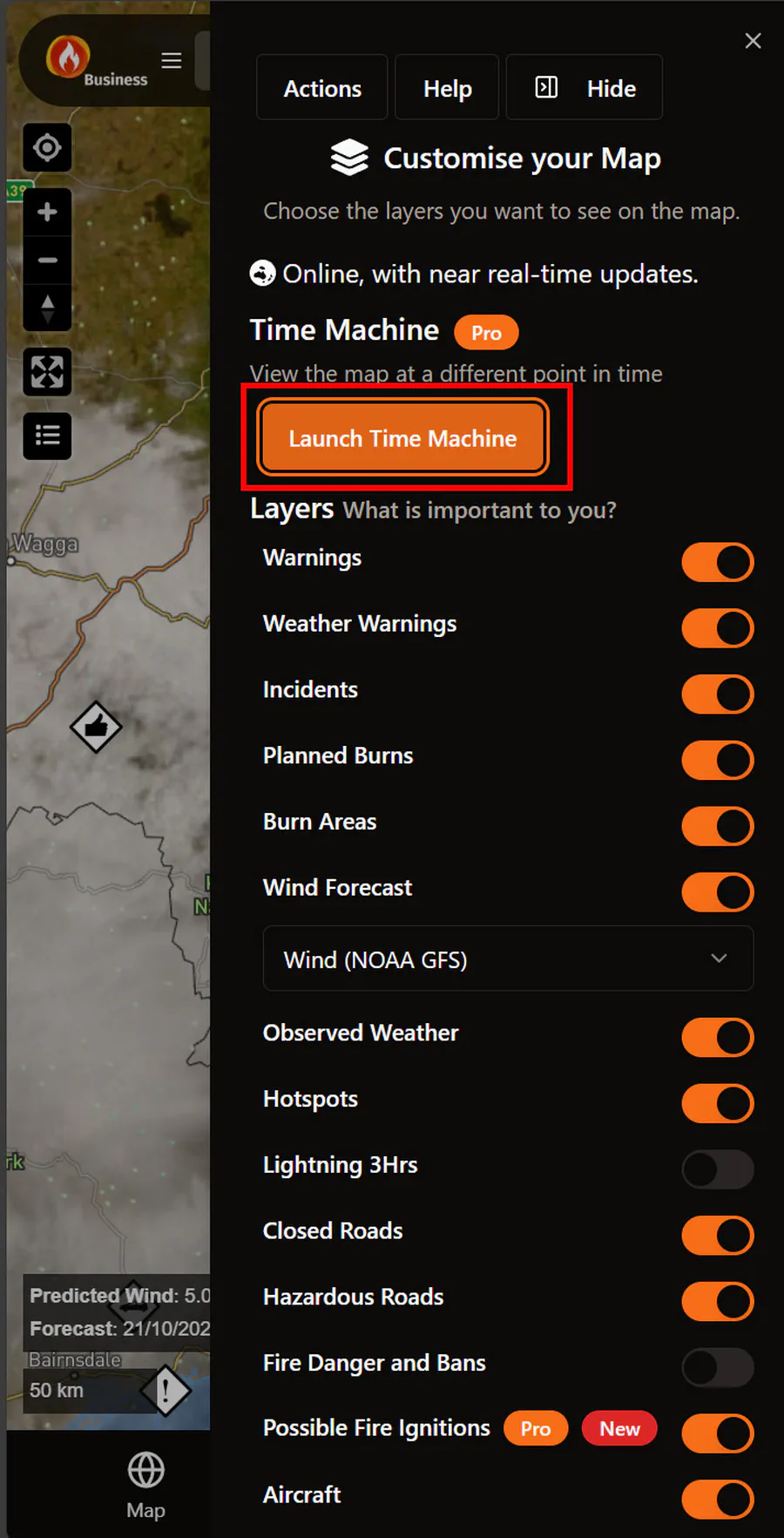
Step 1: Open Layer Control Select “Time Machine” In the Layer Control menu, find and open Time Machine.
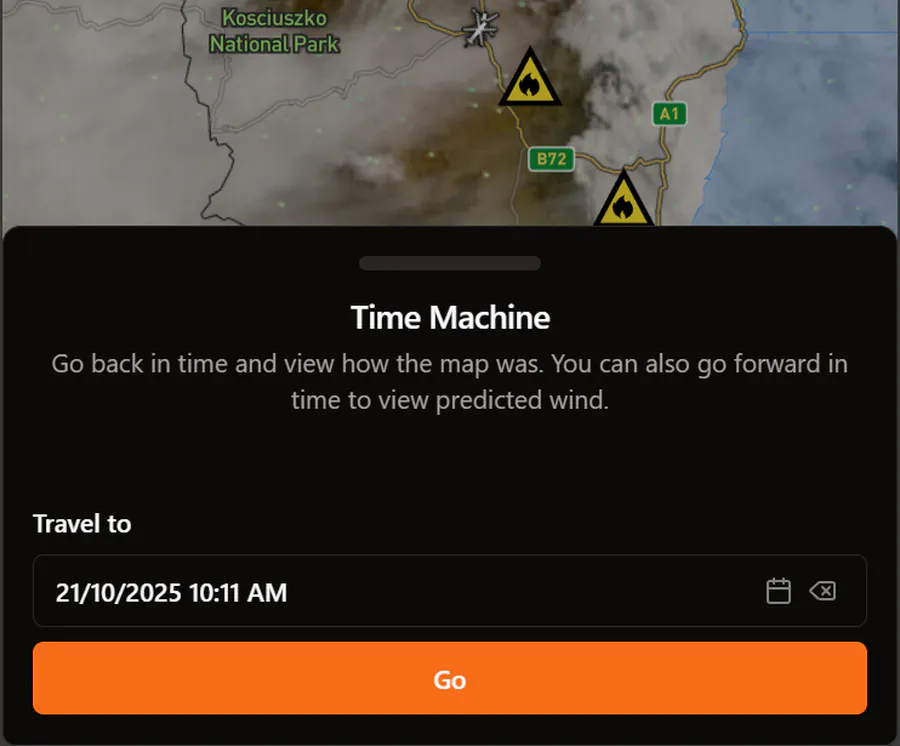
Step 2: Select Time Machine Choose a Date and Time Use the date and time picker to choose the time to view. Then press Go.
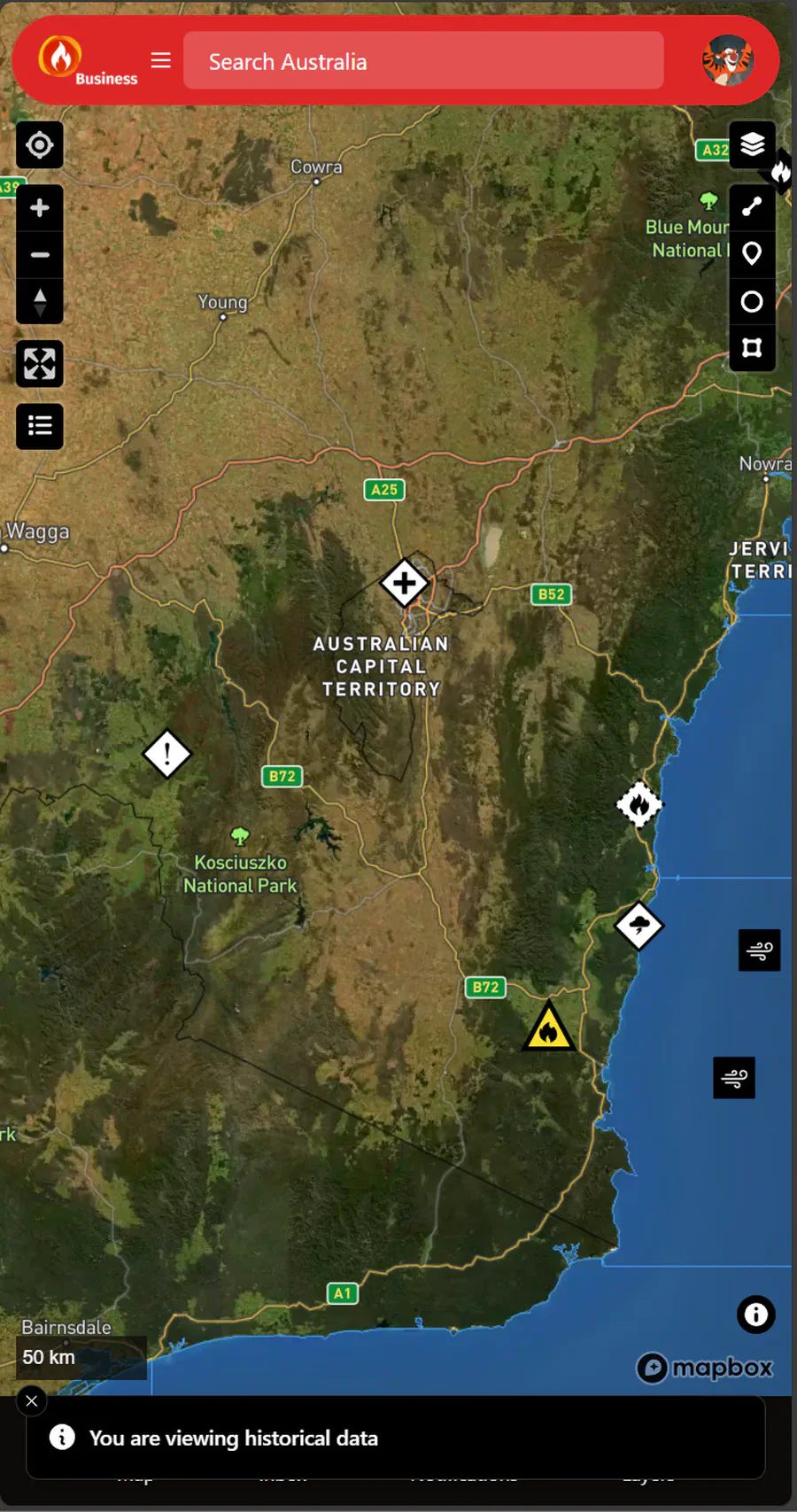
Step 3: Choose date and time Explore the Map The menu bar turns red to show that you are viewing a past or future snapshot. You can move and zoom the map as usual. All data shows as it was at that time.
Step 4: Explore the map Return to Present Repeat steps 1 and 2, then select Back to the present.
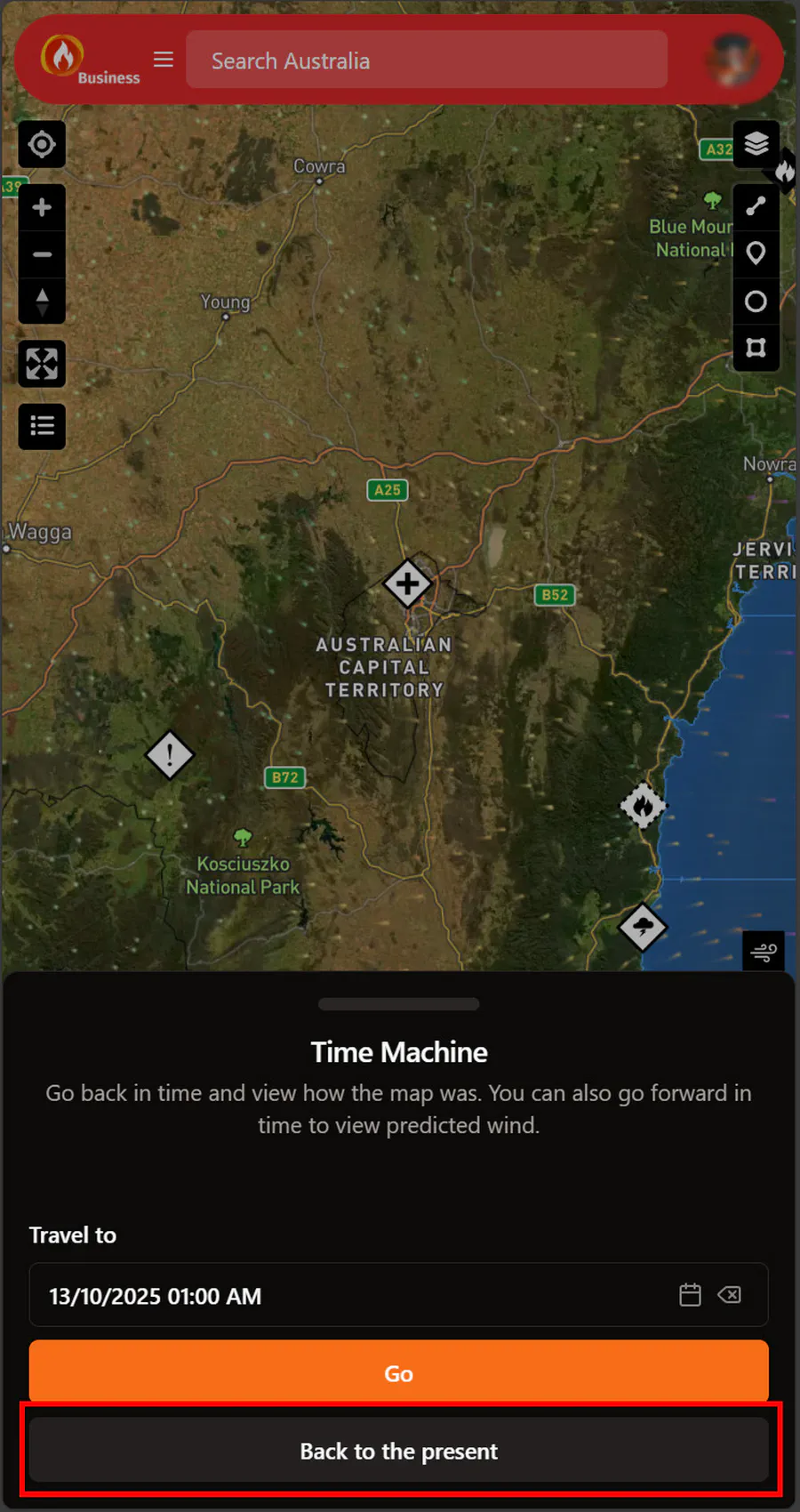
Step 5: Return to the present
Access Levels
Each plan gives a different amount of history and archive detail.
| Plan | Historical Access | Access Interval | Forecast Access |
|---|---|---|---|
| Pro | Past 30 days | 60 minutes | 24 hours ahead |
| Business | 1 year ago | 60 minutes | 24 hours ahead |
| Developer | 180 days ago | 10 minutes | 24 hours ahead |
| Enterprise | Back to 2022-01-01 | 10 minutes | 24 hours ahead |
For example, on the Business plan you can go back in time up to 1 year, or look at forecasts for the next 24 hours. Times are rounded to the nearest hour (for example, 12:00, 13:00 or 14:00). On Enterprise, times are rounded to the nearest 10 minutes (for example, 12:00 or 12:10).
Tip
Need longer archives or more frequent snapshots? Upgrade to Business or Enterprise.
Limitations
- Not all datasets are available in the historical archives. Some feeds are available only for recent dates.
- Forecast data (future mode) primarily includes wind and atmospheric predictions from the Bushfire.io model suite.
- Historical datasets can take longer to load than live data, depending on your connection speed.
- Satellite Imagery is not currently available in Time Machine mode.