How do I add a destination for a staff member?
- Disaster Science
- Bushfire.io enterprise
- November 4, 2026
Table of Contents
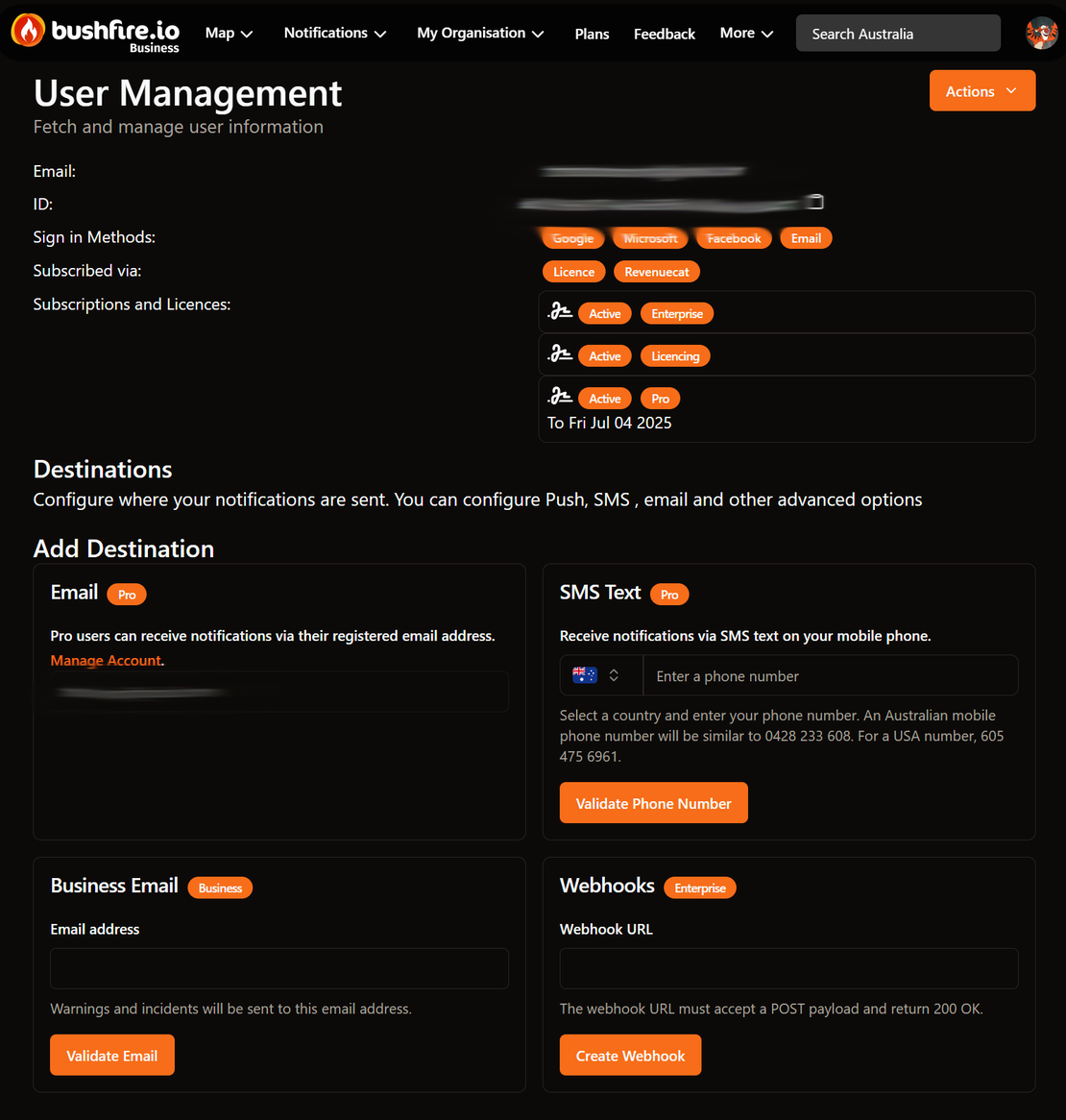
A notification destination is a place where Bushfire.io sends alerts: an SMS number, an email address or a webhook. Each destination belongs to one person. Members can add their own destinations. Organisation Managers can also add destinations for members.
Info
Requires an Organisation Manager on Bushfire.io Enterprise. The member must hold a Business or Enterprise licence. Part of the Enterprise Admin Guide.
Destination types
| Destination | What it sends to | Plan |
|---|---|---|
| The email address of the account of the member. You cannot change it here. | Pro and higher | |
| SMS Text | A mobile phone number. | Pro and higher |
| Business Email | Any email address, for example a team inbox or a distribution list. | Business and Enterprise |
| Webhooks | A URL in your own system. | Enterprise |
Add an SMS number or email address
The member gets a validation code. You need the code from them, so contact them before you start.
- Go to My Organisation > Users.
- Select the member. Their user page opens.
- Go to Add Destination.
- For an SMS number, select the country and enter the number in SMS Text. Then select Validate Phone Number.
- For an email address, enter the address in Business Email. Then select Validate Email.
- Get the validation code from the member.
- Enter the 7-digit code. Then select Validate Code.
The app shows Verification successful. The destination is now in the Destinations list of the member.
Add a webhook
- Open the user page of the member.
- Go to Add Destination.
- In Webhooks, enter the Webhook URL. The URL must use
https. - Select Create Webhook.
The webhook must accept a POST request and return 200 OK. See the developer documentation for the payload.
Use the destination
After you add a destination, select it in a layer notification for that member. See How do I get alerts near my sites?
Control who can add destinations
Go to My Organisation > Settings. The Allow Users to Manage Notification Destinations setting controls whether members can add their own destinations.
- When it is on (the default), members add their own SMS numbers, email addresses and webhooks.
- When it is off, members cannot add destinations. Only Organisation Managers add them, from the user page.
Select Update to save.
Good to know
- SMS alerts come from fixed phone numbers. Ask your team to save them as contacts. See What phone numbers do SMS messages come from?
- SMS is available for warnings only. It is not available for incidents.
- If Add Destination is not on the user page, the member does not hold a Business or Enterprise licence.