How do I get alerts near my sites?
- Disaster Science
- Bushfire.io enterprise
- November 4, 2026
Table of Contents
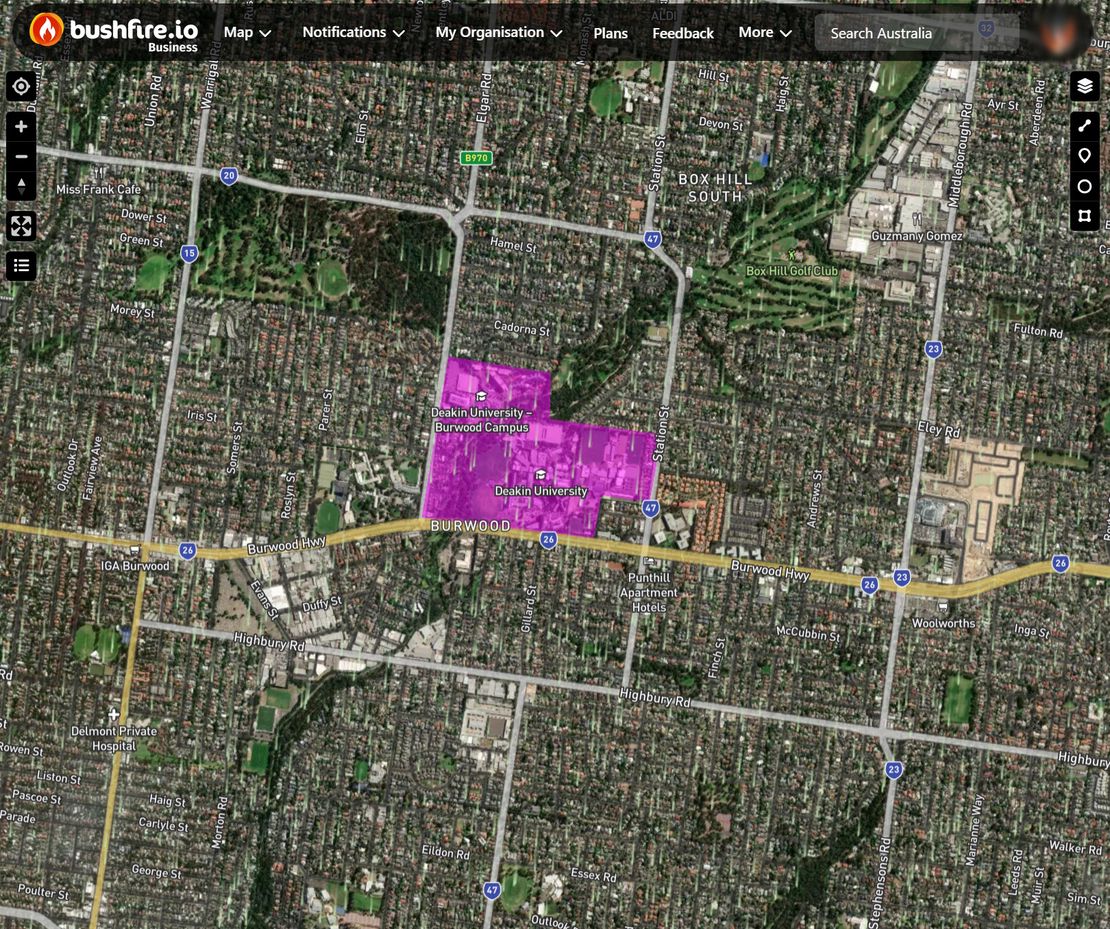
A layer notification sends an alert when Bushfire.io detects an event near any site on a custom layer. Each layer notification belongs to one person. As an admin, you can create layer notifications for the people on your team.
Info
Requires a subscription to Bushfire.io Business or Enterprise. Webhooks require Enterprise. Part of the Enterprise Admin Guide.
Before you start
- Add your sites to the layer. See How do I add a site?
- Share the layer with the person who will get the alerts. See How do I share a layer?
- If the alerts go by SMS, email or webhook, add the destination to the person first. See How do I add a destination for a staff member?
Create a layer notification
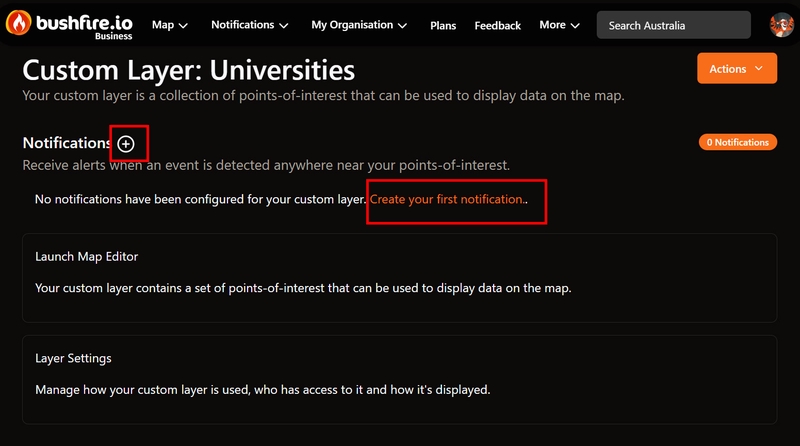
- Go to My Organisation > Layers.
- Select your layer.
- Beside Notifications, select the ➕ button. You can also select Actions > Create Notification.
- In Select a user, select the person who will get the alerts.
- Select Create Notification.
Set up the notification
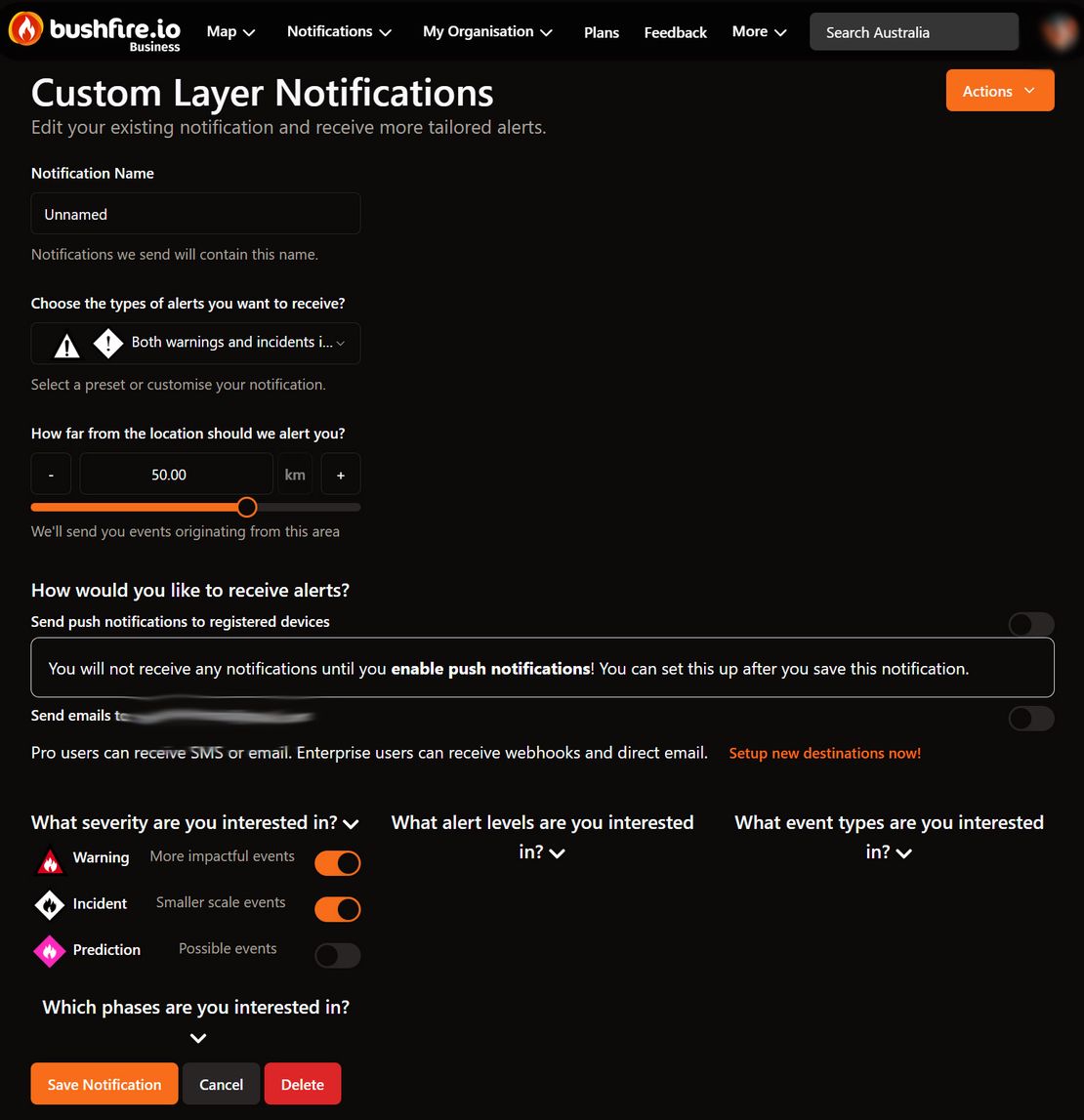
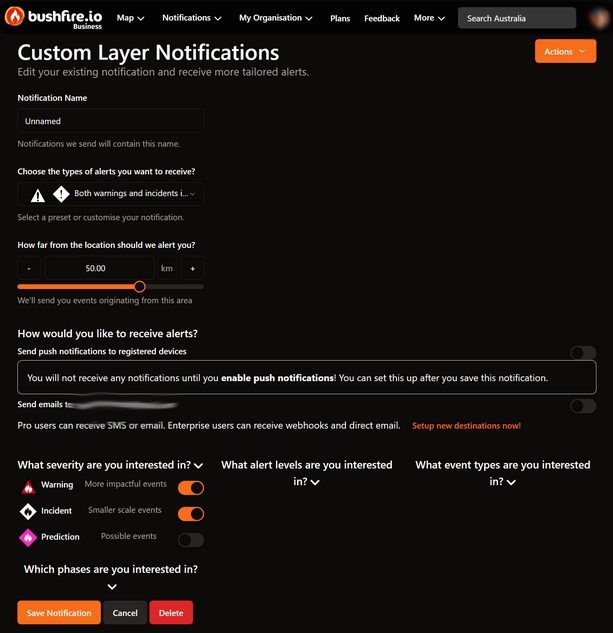
- In Name, enter a name. Each alert includes this name, for example “Depots: 5 km”.
- Under Which notifications would you like to receive?, select a preset:
- Both warnings and incidents in my region (30 km)
- Only warnings in my region (50 km)
- Only Incidents in my neighbourhood (10 km)
- Possible events in your region (Pro) (50 km)
- I will configure my own (Advanced)
- If you need a different distance, move the How far from each location should we alert you? slider. The range is 0.25 km to 75 km.
- Under Notifications, select where the alerts go: push, SMS notifications, Email notifications or Webhook notifications.
- Make sure that the severity, alert levels, event types and phases suit your team.
- Select Save Notification.
The app shows Notification created for custom layer. The notification is now in the Notifications list of the layer.
Copy a notification to other people
- Open the layer.
- On the notification, select Actions > Copy to Other Users.
- Select the people to copy it to. All other people with access to the layer are selected by default.
- Under Copy Options, turn on Copy Email Notifications, Copy SMS Notifications or Copy Webhook Notifications. Each copy uses the destinations of the person who gets it.
- Select Copy Notification.
Change or delete a notification
- Open the layer.
- On the notification, select Actions > Manage to change it, or Actions > Delete to delete it.
Warning
Delete has no confirmation. The app deletes the notification immediately.
Good to know
- The distance applies to each site on the layer. If your layer has many sites, keep the distance to a few kilometres.
- When you change a notification, the app shows how many alerts it sent in the last 2 days. If the number is high, make the distance smaller.
- SMS notifications are not available for incidents. Use SMS for warnings only.
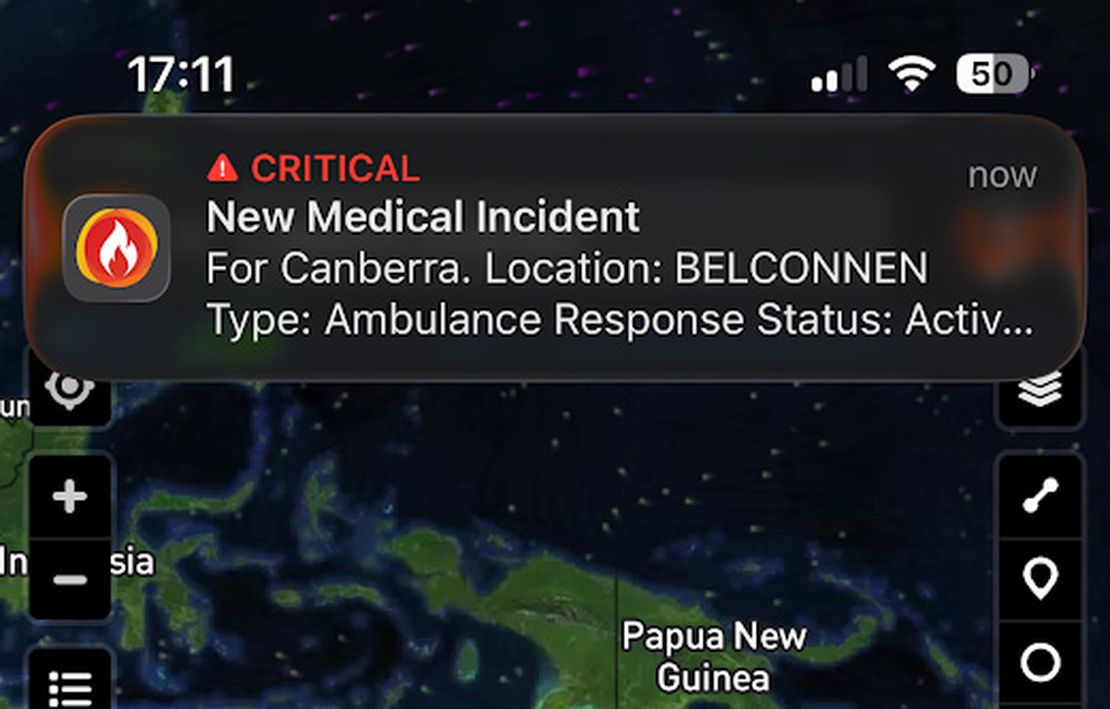
- Bypass silent mode with Critical Alerts (iOS only) makes alerts sound when a phone is silent. Use it only for life-threatening events. See Using Critical Alerts.
- The Updates phase sends an alert each time an event changes. Busy events can change every few minutes.
- If the ➕ buttons for SMS, email and webhooks are missing, your organisation has turned off Allow Users to Manage Notification Destinations. See How do I add a destination for a staff member?
Related
- Enterprise Admin Guide
- How to Set Up Notifications (personal notifications)
- What phone numbers do SMS messages come from?