How do I remove a user who has left?
- Disaster Science
- Bushfire.io enterprise
- November 4, 2026
Table of Contents
When a person leaves your organisation, remove their admin roles, their access to your custom layers and their licence. Their Bushfire.io account stays, with the features of their own plan only.
Info
Requires an Organisation Manager or a licence manager on Bushfire.io Enterprise. Part of the Enterprise Admin Guide.
Do the steps in this order. After you remove the last licence of the person, they are no longer in Organisation Users, and you cannot select them.
1. Remove their manager roles
If the person is an Organisation Manager:
- Go to My Organisation > Users.
- Select the person. Their user page opens.
- Select Actions > Demote from (your organisation) Manager.
If the person is a licence manager:
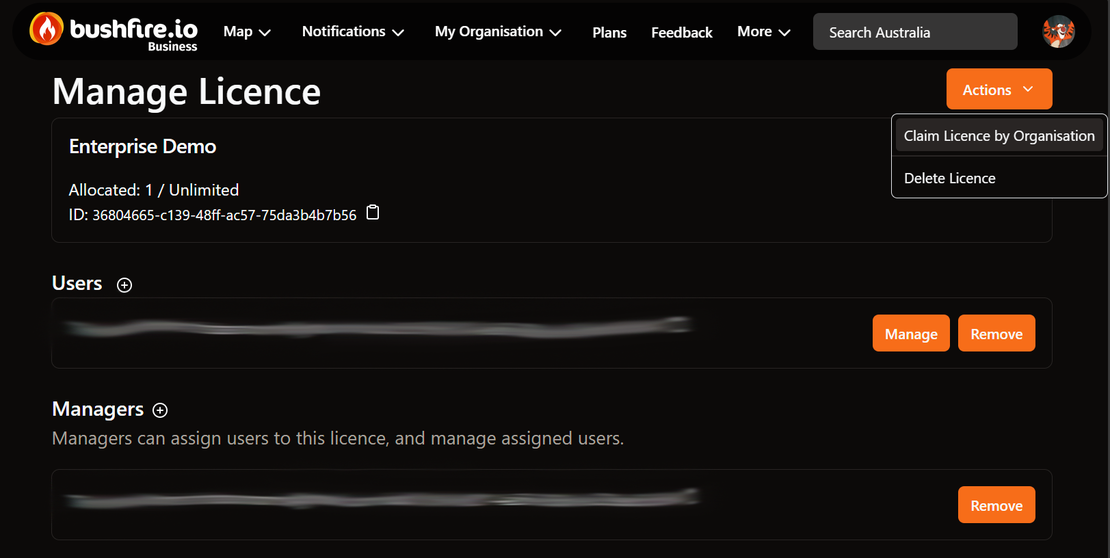
- Go to My Organisation > Groups and Licences.
- Select the licence.
- In the Managers section, select Remove beside the name of the person.
2. Move or delete their layer alerts
Layer alerts that the person owns go to their phone, email address or webhook. Copy the alerts that your team still needs. Then delete them.
- Go to My Organisation > Layers.
- Select a layer.
- Under Notifications, find each notification that shows Owned by: and the name of the person.
- If your team still needs the alert, select Actions > Copy to Other Users. Select the people, then select Copy Notification.
- Select Actions > Delete.
- Do these steps for each custom layer.
3. Remove their direct layer access
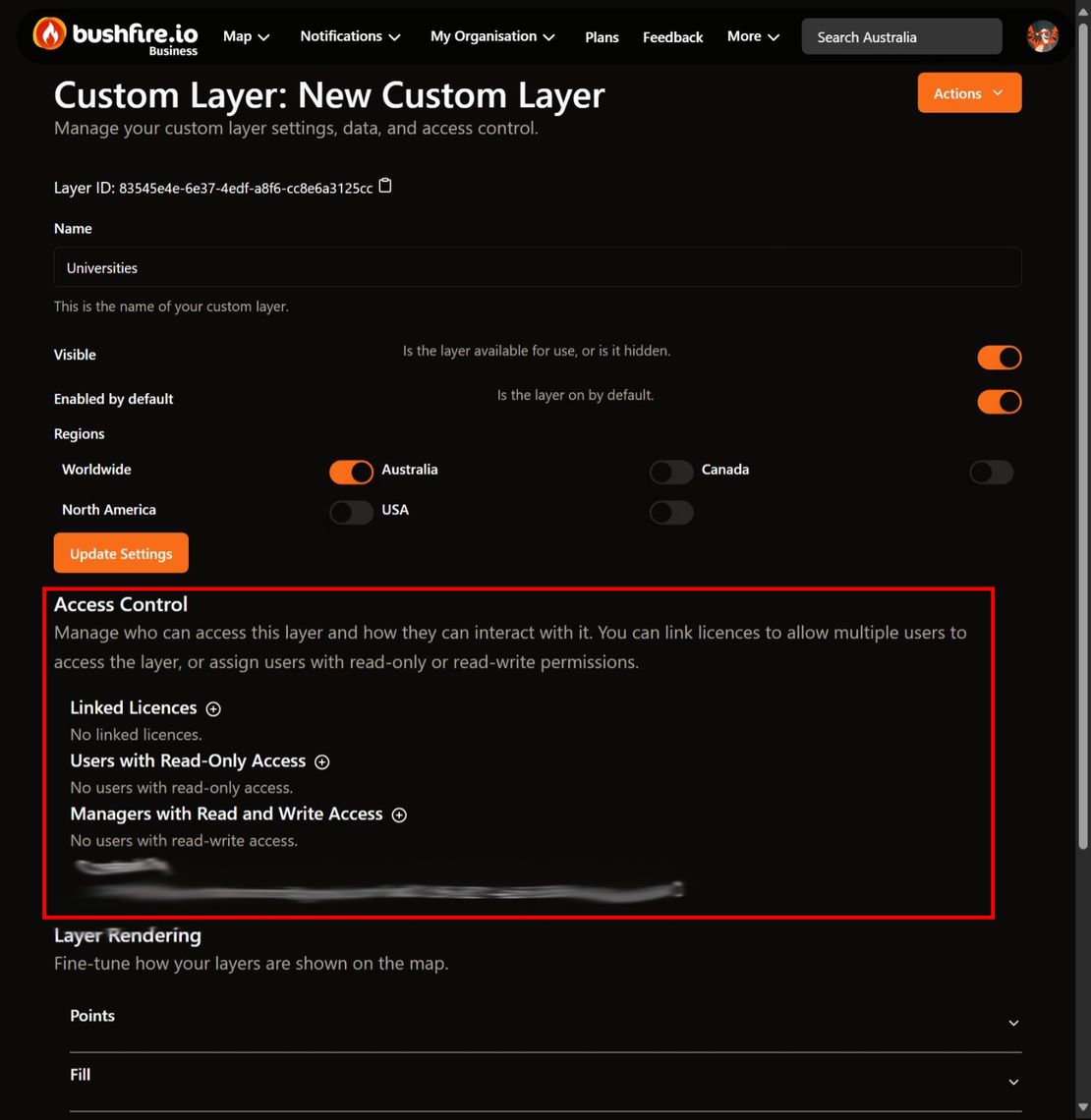
A person can have direct access to a custom layer, in addition to access from a licence.
- Open the custom layer.
- Select Layer Settings.
- Under Access Control, look in Users with Read-Only Access and Managers with Read and Write Access.
- If the person is in a list, select Remove.
- Do these steps for each custom layer.
4. Remove the licence
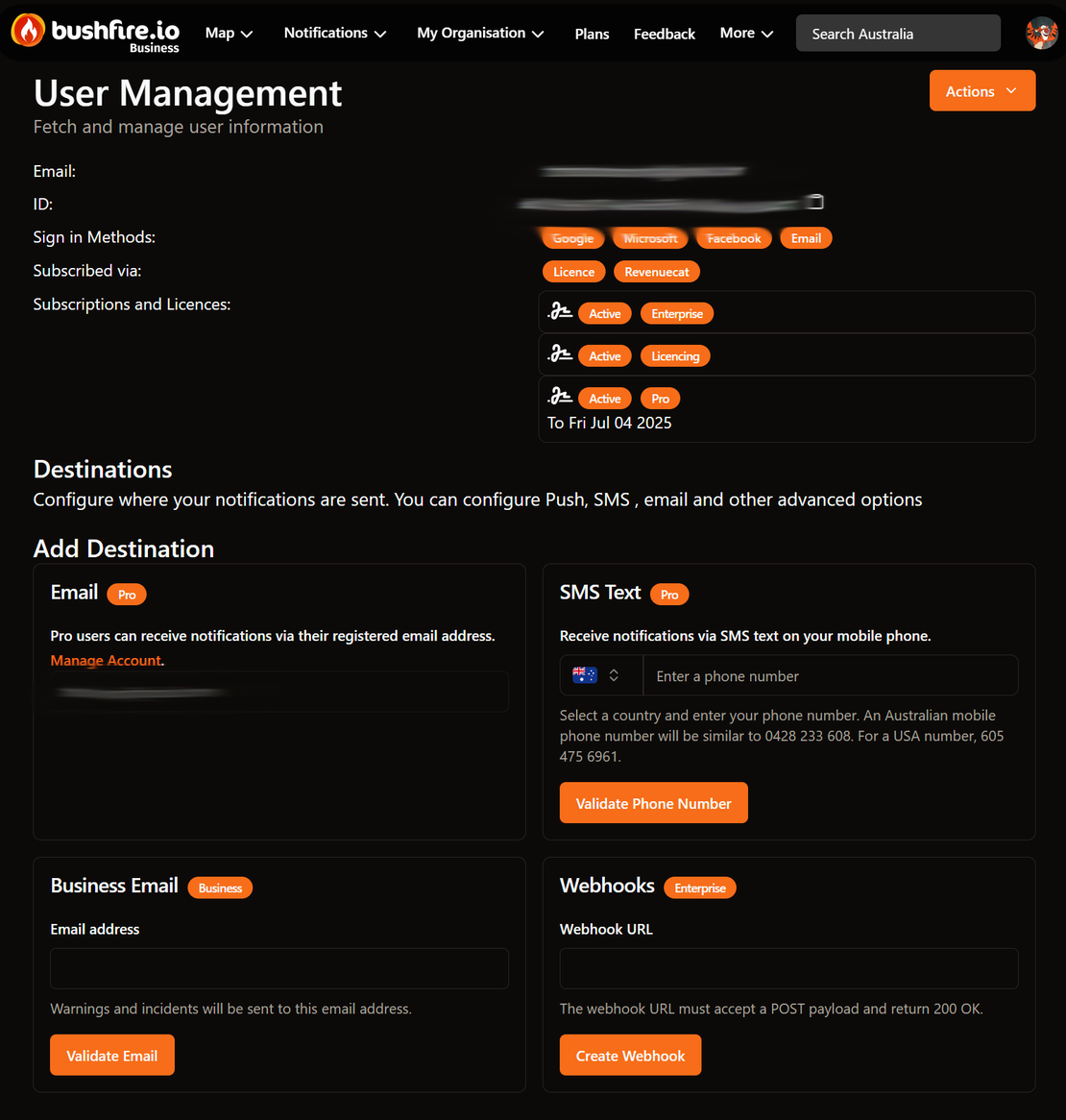
- Go to My Organisation > Users.
- Select the person.
- Under Subscriptions and Licences, select the licence. The licence page opens.
- In the Users section, find the person.
- Select Remove.
- If the person holds more than one licence from your organisation, do these steps for each licence.
Warning
Remove has no confirmation. The person loses the licence immediately. If you remove the wrong person, assign the licence to them again.

Good to know
- If the person got the licence from an email suffix, you cannot remove only that person. Their account still uses their work email address, so it still matches the suffix. Contact us to remove their access.
- Access keys belong to the person who created them. You cannot see the keys of other people. If you need to make sure that their keys stop working, contact us.
- You cannot delete the Bushfire.io account of another person. Only the person can delete it, from Account.